
Agree on the improvement
A ticket records the problem or need, expected outcome, scope, acceptance checks and open questions. Start from Inbox or add a ticket through a permitted connection.
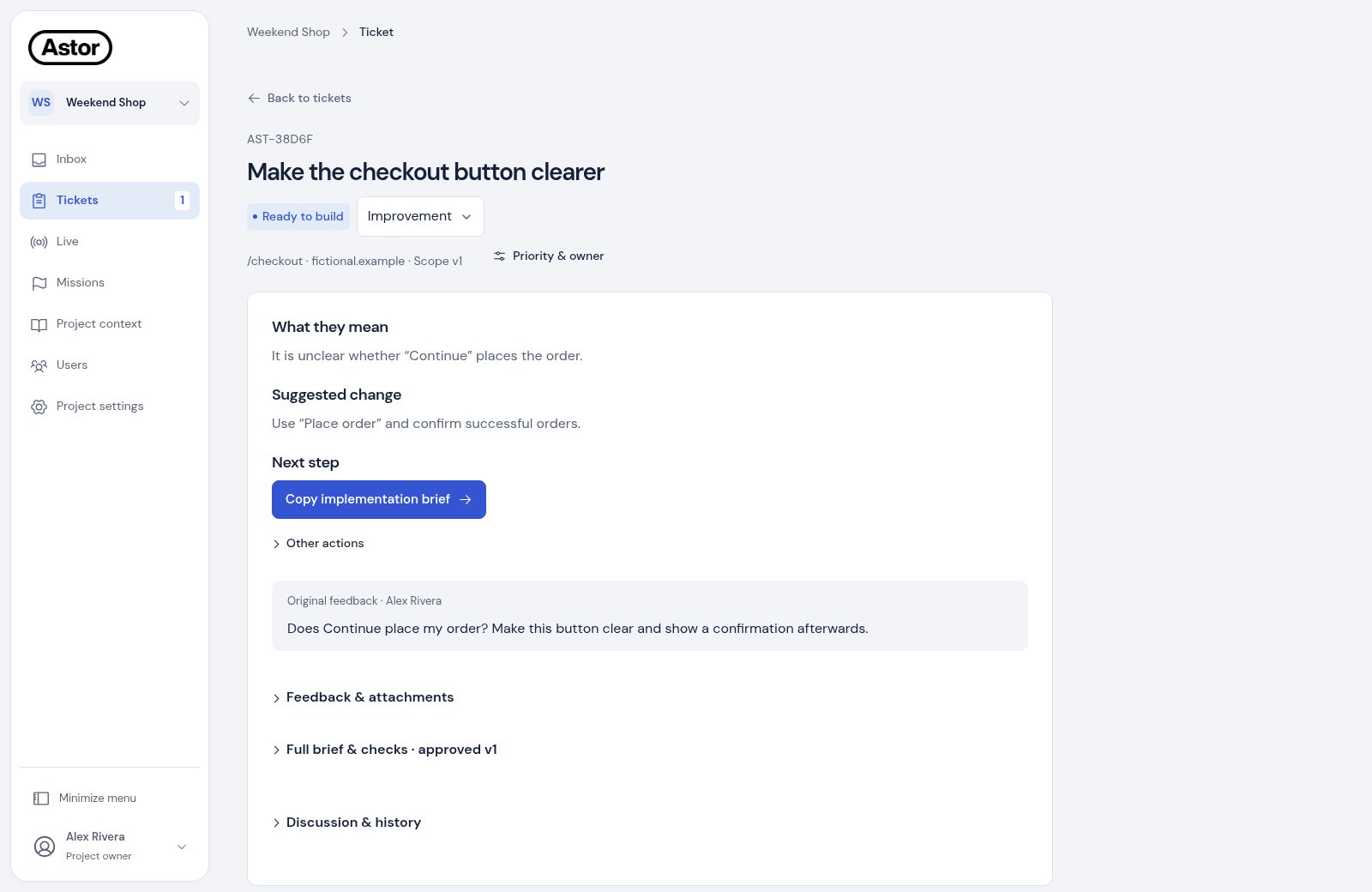
Start with What they mean, Suggested change and Next step. The first view uses a short reading excerpt from the current proposal and shows the original source separately. Long text stays available in full; reading a ticket does not start a new AI job or change the agreed scope. Mission and Live material keep their source labels rather than appearing as a person’s quote.
When opening a ticket from a list, its already loaded title and current proposal can appear first. Actions become available after the current ticket and your access are checked. An unavailable ticket shows an error and Try again rather than an indefinite loading message. This preview is not an approved implementation brief.
Discussion and earlier versions load when you open the detail sections. Use Tab to reach a section heading and Enter to open or close it. Your original submission, open questions and next decision stay available in the first reading. A failed detail request keeps that reading visible and offers Try again. A new-feedback notice refers to feedback added after the recorded scope approval, not after an earlier draft was saved.
Choose Bug, Improvement or Idea in the compact type control. Astor can suggest a type in the feedback proposal, but you can correct it. Your selected type takes precedence over later AI suggestions. Priority & owner opens planning for permitted team roles.
 View full size · opens in a new tab
Keep your place in Tickets
Use search, ticket types and the work step to narrow the list. More filters contains status, owner and order; active selections remain visible when it is closed.
Opening a ticket keeps your search, filters, order and list page in this browser tab. Use Back to tickets or browser Back to return to that list. Changing project, organization, website or current access clears these temporary selections. They are not stored across page reloads or sign-in sessions.
Clarify and review
Open questions and failed verification checks stay visible in the overview. New shared feedback after approval is flagged for review; it does not change the locked scope. Answer material questions before approving the proposal. Review the acceptance checks: each should describe a result someone can observe. Optional analysis can suggest missing details but does not approve the work for you.
Interrupted analysis leaves the ticket saved and returns that attempt’s reserved capacity. Check its current state before retrying. A late reply from the failed attempt cannot replace the proposal or complete that attempt. You can continue reviewing and editing manually; see Troubleshooting.
Astor’s review, inside Discussion & history, is a separate six-unit review. Its total is shown before you choose Ask Astor to review or Review again. Reading the ticket, writing feedback and editing the proposal do not start this job.
When that accepted review has current open questions, Send clarification & review answers them within the same job, with no extra units even if the project pool is empty. A resolved review, a changed brief or a first message cannot start free model work. A new review is a separate choice at its displayed total; Astor never starts a paid fallback automatically.
Included replies share the accepted review’s estimated model-cost ceiling. If a valid answer cannot be processed within it, the answer is saved in Your clarification history and restored when you reopen the review. Save answer & try review saves another eligible answer even if the review stays paused. Continue editing manually. A failed included reply keeps its saved answer and adds no separate reservation; it does not refund an already completed original review. Model cost estimates and uncertain provider attempts remain separate from customer units.
Before processing a queued review and applying its result, Astor checks the requesting team member’s current project role. If they have become a tester or reviewer, the attempt does not apply a suggestion and its reserved capacity is returned. The ticket and original feedback stay saved. Work already sent to the model may still finish; testers and reviewers see no analysis or project economy.
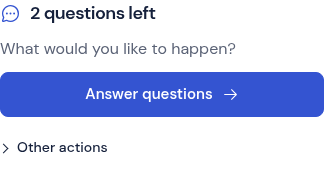
For an editable proposal, the overview shows the number of questions left and previews the next saved question beside Answer questions. Project owners, admins and product team members can open this short flow directly. New conversations use the questions already in the proposal without starting a new AI job; an earlier saved conversation retains its existing state. A long question has a short preview, with its full wording in the question flow and full brief. Astor uses the original observation and current proposal, asks one relevant question at a time and offers quick replies. Write your own answer when an example or a different explanation is more useful. Explain this question provides simpler wording; Leave this open keeps an undecided detail visible.
 View full size · opens in a new tab
The conversation leads to a revised proposal with the answers collected under What we clarified. If a saved answer still needs your review, choose Use answer in proposal beside the answer, choose its field and review the wording, then choose Apply answer. This adds the wording to that field and marks this question answered in the working proposal. Questions and original answers stay in the conversation rather than being appended to the problem. You can also choose Edit proposal to adjust the full brief yourself. Review generic checks and make their expected result specific before approving scope. Choose Save clarified proposal after reviewing it to update the same ticket. The original observation and attachments remain attached, and development approval is a separate decision. Clarification adds no separate analysis charge.
Save for later lets you close and reopen this conversation in the same browser tab. If another person changes or approves the ticket while you are answering, Astor keeps your draft and prevents it from overwriting their version. Review the current ticket before starting again. Approved briefs must be revised before they can be clarified.
Approve the agreed scope when it is ready. Later comments can add context without silently rewriting approved scope. A changed proposal needs the appropriate new version and review.
Build with your existing tools
Use Copy implementation brief in your builder or a connected agent. It includes the exact approved version, scope and verification checks. A permitted API or MCP tool can read the same approved content separately from the current proposal; see Connect tools with API & MCP. A completed job means its result is ready to review, not that the improvement is verified.
Keyboard focus stays on the copy button while the brief is copied. If a retry fails, its error replaces the earlier copy confirmation. A temporary loading error asks you to retry; it does not ask you to approve the brief again.
Review the implementation and any tests or captures. If changes are needed, request them with a concrete explanation.
Verify before closing
Record the updated version and test each agreed acceptance check in the intended environment. Save what passed, what failed and what could not be checked. Use a Mission when another person should test the change.
To attach a completed test, choose Add feedback or results → Use a mission result. This links an existing result; it does not create a new Mission or verify the improvement.
Choose Add feedback or results → Mission to prepare a retest from the exact approved checks. Review the linked brief version and reported change, adjust the task if needed and agree before creating it. The results keep those references and return to the same ticket for human review.
Recording verification, closing or reopening a ticket does not start AI analysis. Connected tools receive this project’s subscribed events separately.
Close the ticket only when the required result has been verified. A successful build, an AI recommendation or an uploaded screenshot is not a substitute for testing the behavior.
Keep supporting material together
Written feedback, Mission results and Live observations can support one improvement. Linking more material never widens the approved scope automatically.
In Discussion & history, choose Shared discussion or Internal discussion to read one thread at a time. Internal discussion is available only to permitted internal team members. Your unfinished comment stays in its chosen thread when you switch or close and reopen this section; it is not copied to the other audience. These unsent comments stay only while this ticket remains open in the current tab. Mentions lead to the permitted comment in its own thread. Comments add context without changing the approved brief.
Use Feedback & attachments for complete originals and linked results, Full brief & checks for the exact approved content and clarification answers, and Discussion & history for permitted comments, earlier conversations and versions. Screenshots open on request. Internal discussion keeps its access boundary.
Capture details shows supplied browser, device, page size and capture information when available. Technical details opens the complete supplied metadata separately. Missing capture information is not inferred.
Permitted project team members can expand linked observations, then Retained source details, to read the saved source timeline. Recorded elapsed time preserves recorded sub-second steps and includes any pauses or gaps; it is not active time. Each source keeps its explanation and limits. Open source opens the original when it remains available, while the saved observation can outlast it.
AI assessment of this improvement is supporting advice, separate from human review and verification. If the ticket has changed since an assessment, review the current feedback and results before using its suggestions.
After a rejected ticket change, Astor hides the old ticket view and checks your current project access. Internal discussion and team actions do not remain available under an earlier role. The saved original feedback stays unchanged; check the current ticket before retrying. Your own unlocked feedback remains editable when your current role permits it, even with no AI capacity.
Removing project access or changing a role also affects retries of earlier actions. Astor refuses a cached reply when the request no longer matches your access. Reload the ticket to see the current permitted content and whether the change was already saved before trying a new action.
Export your project
In Tickets, choose Export project to download a spreadsheet of feedback you can currently read in the selected project. The workbook keeps the permitted proposal, original feedback and discussion. Private internal comments stay restricted to permitted project team roles.