
Give testers one clear task
Open Missions and create a task, or create a contextual Mission from a ticket. Enter the Tester task and choose Continue, or Use a template for a starting point. Describe what the tester should do, what counts as success and anything they need before starting. Adjust a template to your product before choosing Review mission.
Astor helps clarify the task by default when available, with no AI checkbox to enable. It asks one question at a time, with at most two follow-up questions. Choose a quick reply under the question or write your own; your answer appears immediately. On a keyboard, Enter sends and Shift + Enter adds a new line. Review the proposed task before choosing Agree & create mission. Choose Edit mission to adjust its fields, then Review mission to check the result. Clarification and creating the agreed Mission add no AI charge. If you change the task, Original mission request keeps your earlier wording and paragraph breaks available for comparison.
Use a concrete task such as “find the cancellation terms” instead of “test the website”. A ticket Mission keeps its connection to the improvement it should check.
Preparing and confirming a Mission checks current project permissions after the request arrives. A rejected request does not create a Mission. Astor removes the old private workspace and rechecks access. If you still have access to the same project, your original task remains available to copy from Your unsaved task. Reconnect if your session or project access ended. Retests do not keep an earlier approved brief in this recovery view; read the currently permitted ticket again before retrying.
Retest an agreed improvement
From the ticket, choose Add feedback or results → Mission. For an approved brief, Astor prefills a retest from its exact agreed checks. Review Approved brief v… and the reported change reference when present. Adjust the task and success conditions through Edit mission, then choose Agree & create mission. Preparing this retest does not start paid analysis.
If all checks do not fit one task, the initial view shows how many were included. Read the full approved brief and plan the remaining checks explicitly. Astor keeps each included check whole; it does not shorten an agreed condition into a different one.
The Mission retains its approved brief and reported change references. If that target changes while you prepare it, creation stops and your draft stays saved. Review the current ticket before preparing the new test. A tester’s reported result still needs a permitted person’s deliberate verification; it does not approve or close the ticket.
 View full size · opens in a new tab
Read the agreed task
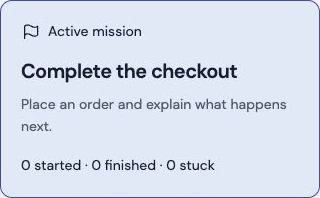
Select a Mission to see its task, Done when, any Before starting conditions, invitation group and website directly. On mobile, the compact task cards retain the title, availability and recorded counts; read the full goal in the selected task below. These are the saved conditions, not an automatic assessment of whether the test succeeded. Open starting page opens the website in a new tab. Optional Recording settings remain separate and are available only to permitted project team members. Saving checks current access. If your session or role changed, Astor refreshes the available controls instead of keeping the earlier editing actions.
During an ordinary update in the same project, the current task stays visible. If Mission access is denied, Astor removes the previous task and results; use Try again to check current access. Switching projects or changing roles does not keep the previous private results.
Recorded analysis also checks current access while preparing media. If the requesting team member’s access or the saved result changes, Astor stops further processing and preserves the original report and steps. A permitted team member can review the result and decide whether to retry.
Invite testers
Choose an active invitation group when required, then use Users to create personal tester invitations. Manage groups in Users → Tester invitations. You can assign the Mission and add instructions. New testers join with accounts and do not need subscriptions.
On the product website, the tester opens the Mission, reads the task and agrees to step recording. Optional screen, voice and webcam recording has a separate consent flow.
Follow the test
The movable toolbar keeps the task visible and offers pause, I’m stuck and finish. Step recording captures page paths and generic actions, not entered field values. The tester saves their reported result and optional explanation.
Written results can be saved with no AI capacity remaining. Creating a Mission, starting it and saving steps do not start AI analysis. Reading or retrying a result does not request a new analysis; an already accepted pending analysis continues. Starting, sending steps and saving a result check current access after the request arrives, including a retry. If the session or invitation was withdrawn while saving, Astor refuses the save and keeps the unsent explanation in the open toolbar. Do not treat that explanation as saved until Mission result saved. appears.
Permitted project team members can read each person’s timeline and reported outcome. Testers and reviewers see their own results, not other participants’ private journeys. A reported success is the tester’s account of the result; use application signals or a verification check when you need independent confirmation.
Read recorded time
A saved journey shows Elapsed time, Registered clicks and Recorded steps. Elapsed time runs from the recorded start to the saved result and includes pauses, navigation and gaps; it is not active time. A run still in progress shows Not finished, its paused/in-progress state and the last received step. If the final timestamps are unavailable, the duration stays Not recorded.
Each timeline time is since start. The between steps interval compares adjacent received steps and also includes any pause or gap. Small intervals retain milliseconds, such as 400 ms; longer times use minutes and seconds, such as 0:04.1. Missing timing or steps are not filled in. The click count covers received click steps only, not everything the tester did. Pauses, blocked scripts, missing pages or an incomplete recording can leave an incomplete observation.
Review the results
Optional analysis uses the project pool and shows its cost. It separates recorded observations from possible explanations, points to relevant steps or captures and suggests what to check next. Available results remain saved if analysis cannot run.
If analysis is interrupted, the tester’s reported outcome, explanation and recorded steps stay saved. That attempt’s reserved capacity is returned; a late reply cannot overwrite its failure or a newer attempt. Check the current state, then use Analyse with Astor and review the displayed cost if you want to retry. Expired, unprocessed recordings cannot be analysed again; the written result and recorded steps stay available.
Send useful results to Inbox or link them to the relevant ticket. Analysis does not approve scope or mark an improvement verified.
To link a result that already exists, choose Add feedback or results → Use a mission result on the ticket. This is separate from creating a new Mission.
Read Record a usability test for optional media and its limits.
Before analysis finishes or an unprocessed recording expires, open Raw recordings in its result and choose Load recording. Playback is private and does not start analysis. After raw playback becomes unavailable, use the saved steps, written result and retained analysis or screen samples. See recorded usability tests.