
Choose the simplest way to explain it
Use Leave feedback in Inbox or open Astor on the verified website. You can comment on the page, mark an element, mark an area or explore an idea. The toolbar’s available tools depend on project settings.
Useful feedback answers three questions: what did you try, what happened, and what should have happened? A short example is often more useful than a long description.
If the website asks you to sign in, use the Astor account with access to that project. Successful sign-in closes the pop-in and shows the feedback toolbar automatically. You can start testing on the same page without reloading or using the shortcut again. An incorrect password keeps the sign-in form open so you can retry.
The sign-in panel fits its form and any error message. On a short screen, scroll inside the form to reach the remaining controls. Escape or Close sign-in returns you to the website. Signing in does not grant access to a project you have not joined.
 View full size · opens in a new tab
Point to the relevant place
Select the element or area that helps the team understand the problem. Selecting an element for feedback should not activate the website action underneath it.
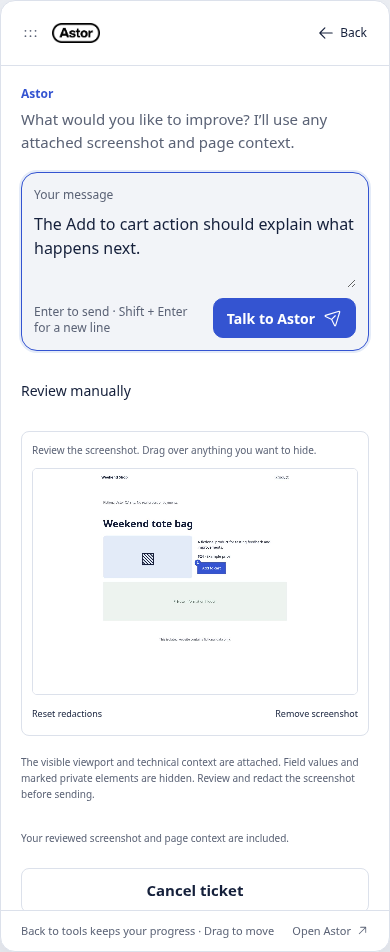
Review any capture. Remove or mask private details before sharing. A screenshot can explain where a problem happened, but it does not prove that an operation completed.
Automatically attached element text leaves out marked private areas and form fields, including those inside a selected container. Screenshots mask private areas before loading their image resources. Recognizable identifiers, including those in button labels, are masked; your own written feedback keeps its wording. Review the image and use your website's private selectors for sensitive content that cannot be recognized automatically. If capture is disabled or fails, you can still save written feedback. See capture privacy.
Drag the panel header or toolbar grip when it covers something you need to reach. Keyboard users can focus the grip, use arrow keys to move it and Home to reset. Minimize the panel when you need more space; your unfinished feedback stays available while the panel remains open.
Clarify and confirm
Astor helps clarify your feedback by default when available; there is no AI checkbox to enable. You still review and confirm the proposal before it is saved.
In the website panel, choose Review manually beside the starting conversation to review your written feedback and capture without an AI reply or background analysis. Edit what is known, keep unresolved questions visible and choose Save feedback. You can use this path even when AI is connected or the project pool is empty.
Astor asks one relevant question at a time. Quick replies appear directly under the question: choose one to send it, or choose Write my own answer. Describe the result in your own words, give an example or share a reference. If there are no useful suggestions, the text field opens immediately.
Choose Explain this question for simpler wording and an example. Choose Leave this open when you cannot make a decision yet; that uncertainty stays visible in the proposal.
Some observations need more detail than others. Astor can ask further questions based on your answers, rather than stopping after two fixed questions. A round has up to six new questions before showing a proposal for review. If material questions remain, choose Answer remaining questions to continue with your previous answers intact.
If you edit the proposal and clear its Open questions, the extra question action disappears. Keep unresolved decisions listed for review; clearing the field does not approve development.
Your message appears in the conversation as soon as you send it. Astor shows when it is preparing a reply. On a keyboard, use Enter to send and Shift + Enter for a new line; numbered shortcuts select quick replies when you are not typing in a field. If sending fails, your answer stays in the text field so you can retry.
Choose Continue manually in Astor or the website panel to review and save what is known without another AI reply or a background analysis. Your original feedback, attachments and open questions stay with the proposal. Save for later keeps the draft available to resume. If continuing fails, follow the access and connection checks.
Before starting a queued reply, Astor checks that your project or personal test-link access and the saved draft are still current. An outdated reply is not applied; your original feedback and answers remain saved. Work already sent to a provider may still finish. Continue manually while you have current access, or reconnect with the account that created the draft.
Review Feedback type: Bug, Improvement or Idea. A short Suggested by Astor reason can accompany the proposal; change the type when needed. Your selected type stays selected through follow-up replies and retries, and follows the saved feedback. Manual continuation, a newer fallback reply or a meaningful change to the proposal clears earlier AI advice. Changes to leading or trailing spaces keep the suggested type. Your own selected type is kept. Missing or unusable AI advice does not block saving.
Read the proposed title, problem, expected outcome, checks and any open questions. Open Original feedback & attachments to compare the proposal with your own wording; its paragraph breaks stay readable. What we clarified keeps your answers beside the proposal. Choose Edit proposal to adjust its fields, then return to Review proposal. If a custom answer has no automatic field mapping, the review explains the remaining step: choose Use answer in proposal, choose the field it belongs to and review the wording. Apply answer adds the wording and resolves that question in the working proposal. The original question and answer stay in the conversation. Leaving a decision open keeps its question visible. Confirm when the proposal represents what you meant.
Choose Adjust with Astor to refine a ready feedback proposal. Your current proposal edits go with the adjustment, while your original feedback and earlier answers remain separate. If a reply fails or reaches a service limit, you can review those saved edits and continue manually without another analysis.
In Astor’s project view, a confirmed save closes the conversation and shows Feedback added to Inbox. You return to Inbox while the view refreshes. On a website, the panel shows Your feedback is in. Choose Back to testing to keep testing the same page. The project team reviews the saved feedback in Inbox and decides what to take forward.
Creating, answering and saving a conversation checks current project, session and test-link access after the request arrives, including retries. An outdated form that points to a different project is refused. In the website panel, your unsent message stays in the open form so you can review and retry. If access was withdrawn, the change is refused. In the app, an ended session or a background access check can open Feedback not sent for a message you have not sent yet. The wording stays only in this tab’s memory, hidden until the same account and project access are checked. Sign in again and choose Resume feedback. A message based on a Mission or Live source also requires access to that original source and the same project role. If access is unavailable, Check access again after it is restored, or Discard unsent message. Reloading, closing the tab, signing out or switching accounts or projects discards this unsent recovery. Retrying the same unchanged message in this recovery reuses its earlier request, including when the server saved the conversation but its reply was lost. A submitted conversation uses Resume your saved conversation instead. A rejected confirmation keeps the reviewed wording in the open panel and focuses the error; it does not mean the feedback was saved. Keep the panel open while recovering your wording, and check for Feedback added to Inbox. in the app or Your feedback is in. on a website before treating the save as complete.
An idea remains an idea until the team chooses a change. Confirming feedback does not approve implementation, start an agent or close a ticket.
For project team members, Astor reviews confirmed feedback in the background when analysis is available. The total cost is shown before Save feedback, and follow-up questions are included. If the project pool runs out, the written feedback still saves. Ideas and manually continued drafts do not start this analysis. Testers see no payment choices and need no subscription. See Plans and capacity for the project’s shared pool.
For spoken testing, use Voice feedback. For a specific task, use a Mission.
Return to the project
Open Account options from the toolbar’s Astor mark, then choose Open project in Astor or Your account. The project link keeps the selected project when sign-in is needed; your membership still controls access. A toolbar opened through a personal test link keeps its direct Astor link.
Choose Sign out of feedback to end this website’s current feedback session and return to sign-in. Saved feedback stays in Astor. Other feedback sessions and your separately signed-in project view stay signed in. If you have unsaved input, review the confirmation before leaving. Finish or pause active testing before signing out.
Closing the toolbar keeps valid feedback access for reopening. If that access has expired, reopening asks you to sign in again without reloading the page. If sign-out cannot be confirmed, the account menu shows an error so you can retry.